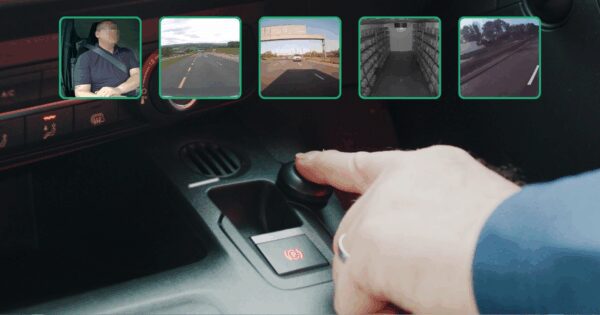
To see reports relating to a specific vehicle, use the Tracking feature.
Select Tracking from the left-hand menu.
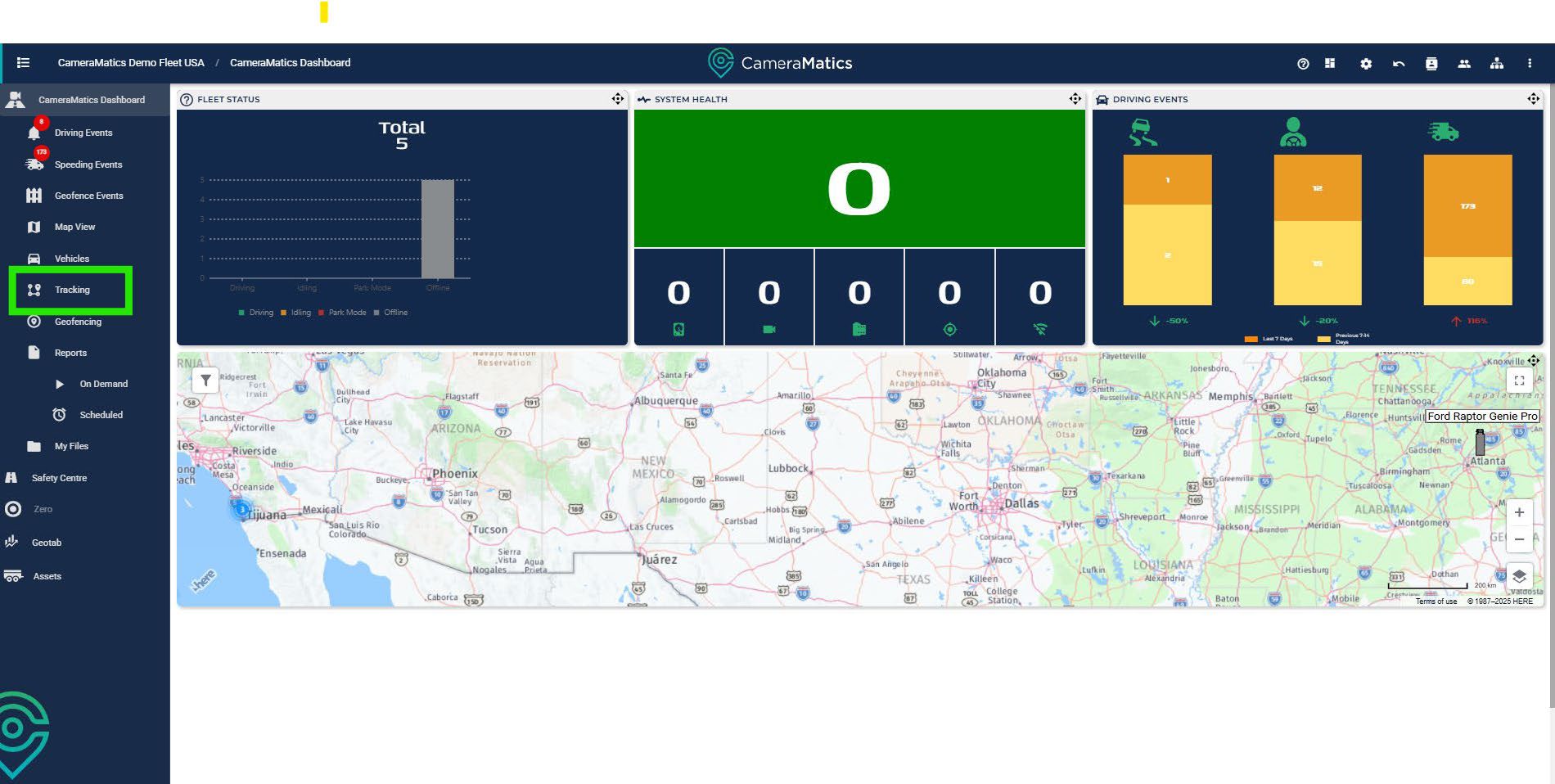
Then decide which vehicle you want to view, and the date range you are interested in. Once done, click Search.
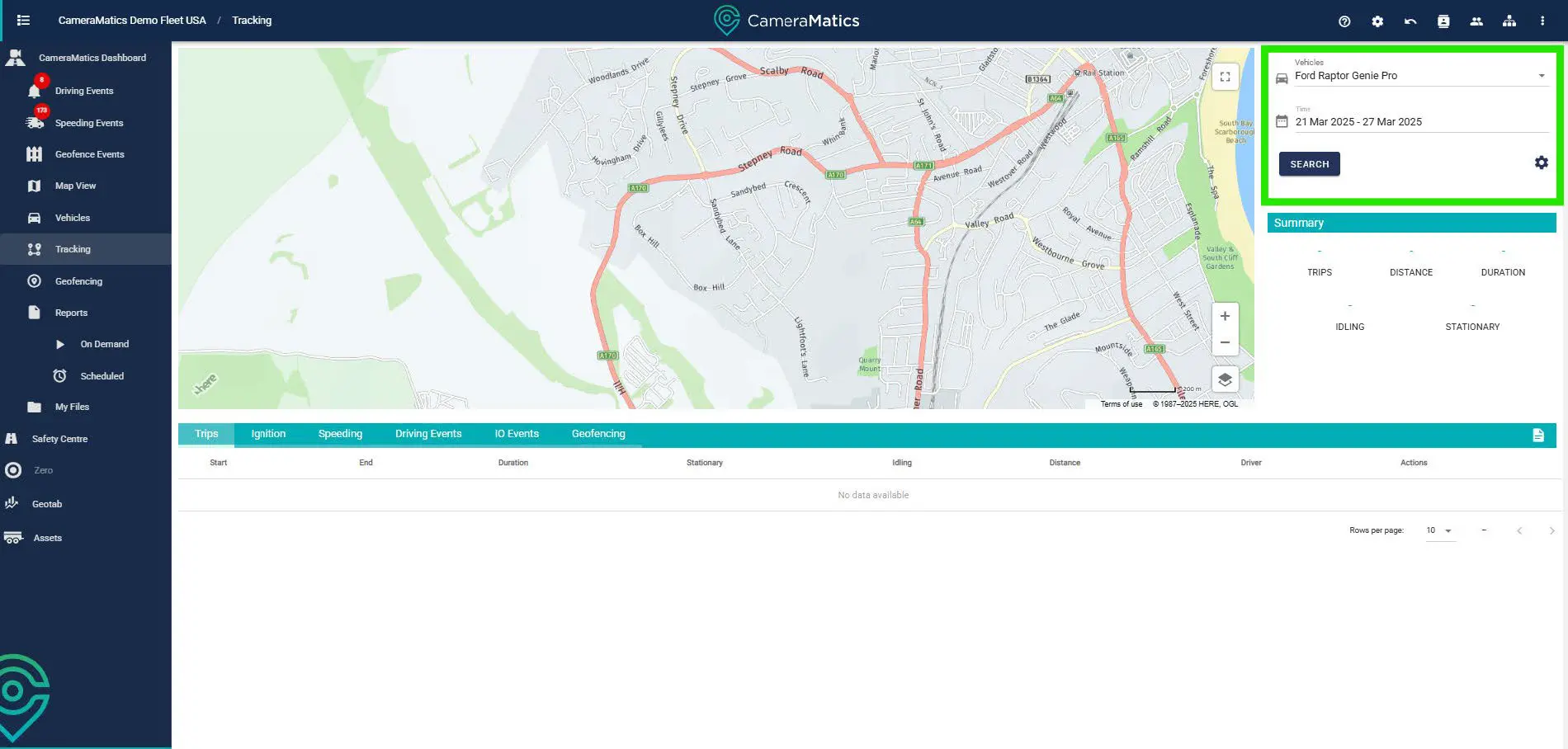
You will then see different tabs along the bottom of the map view. These are:
- Trips – To show a full list of the trips that this vehicle has completedwithin the timeframe
- Ignition – Times when the ignition has been switched on and off
- Speeding – Speeding events recorded during the relevant time frame
- Driving Events – Events such as harsh acceleration, braking andcornering recorded during the relevant time frame.
- IO Events – This will show any events that the driver specifically wantsyou to see.
- Geofencing – If the vehicle has crossed any Geofences during therelevant time frame.
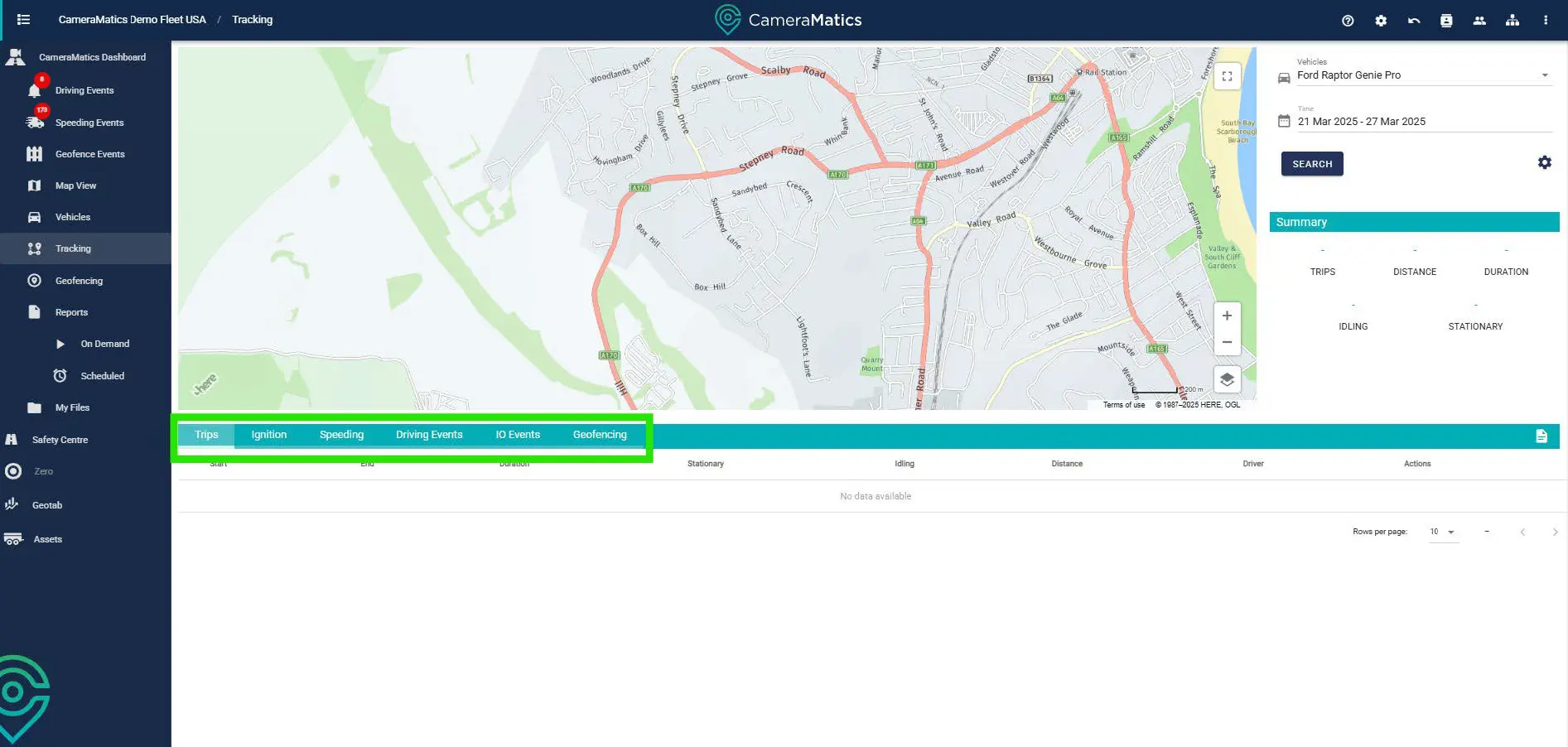
Once you have searched for the specific report you are looking for, you will see detailed information surrounding the vehicle.
Trips
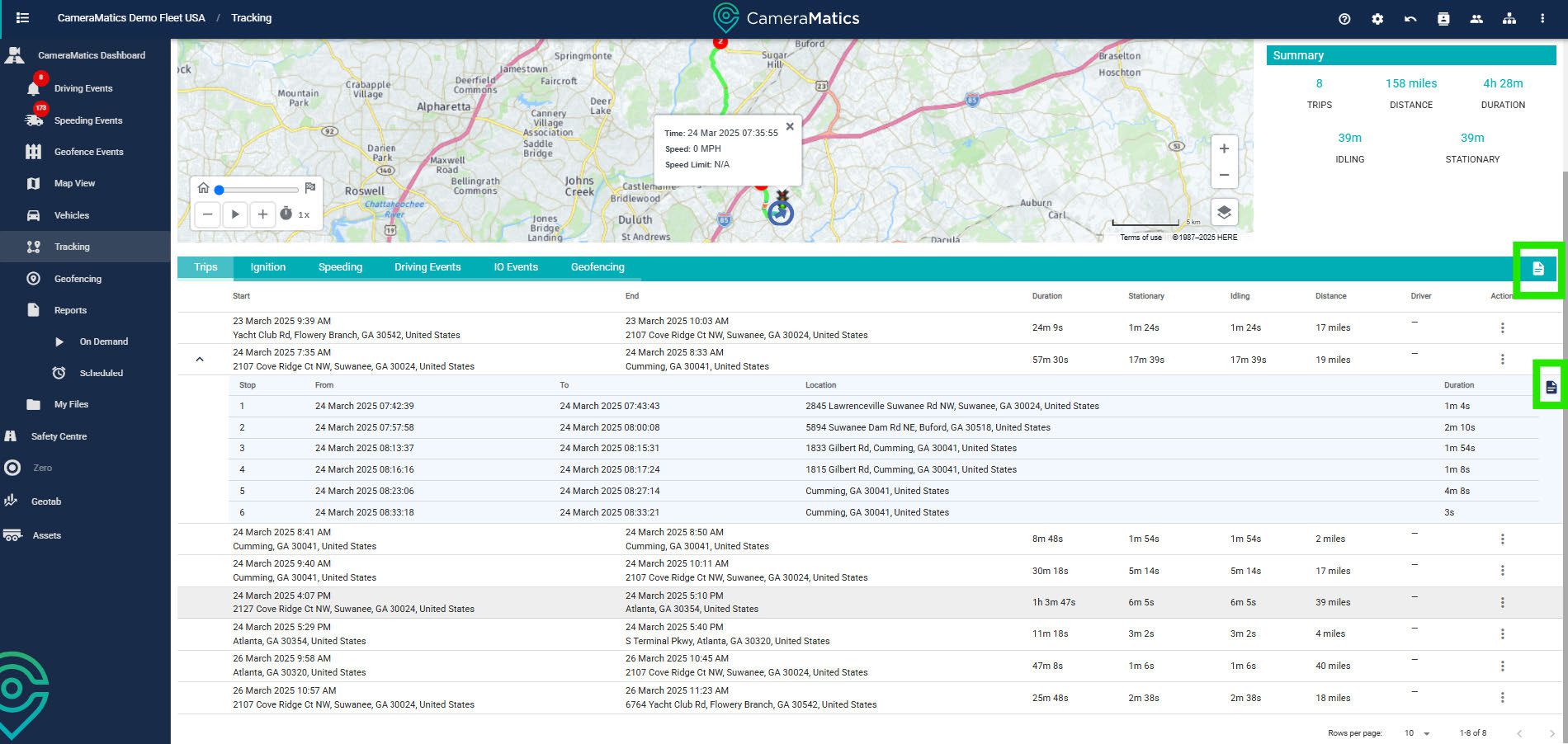
You will see each trip that the vehicle has completed. Click on any of these to see the route taken on the map.

If you click the drop-down arrow on the same line, you will then see how many stops occurred during this trip.

You can also export this report or export the trip specifically.
Ignition
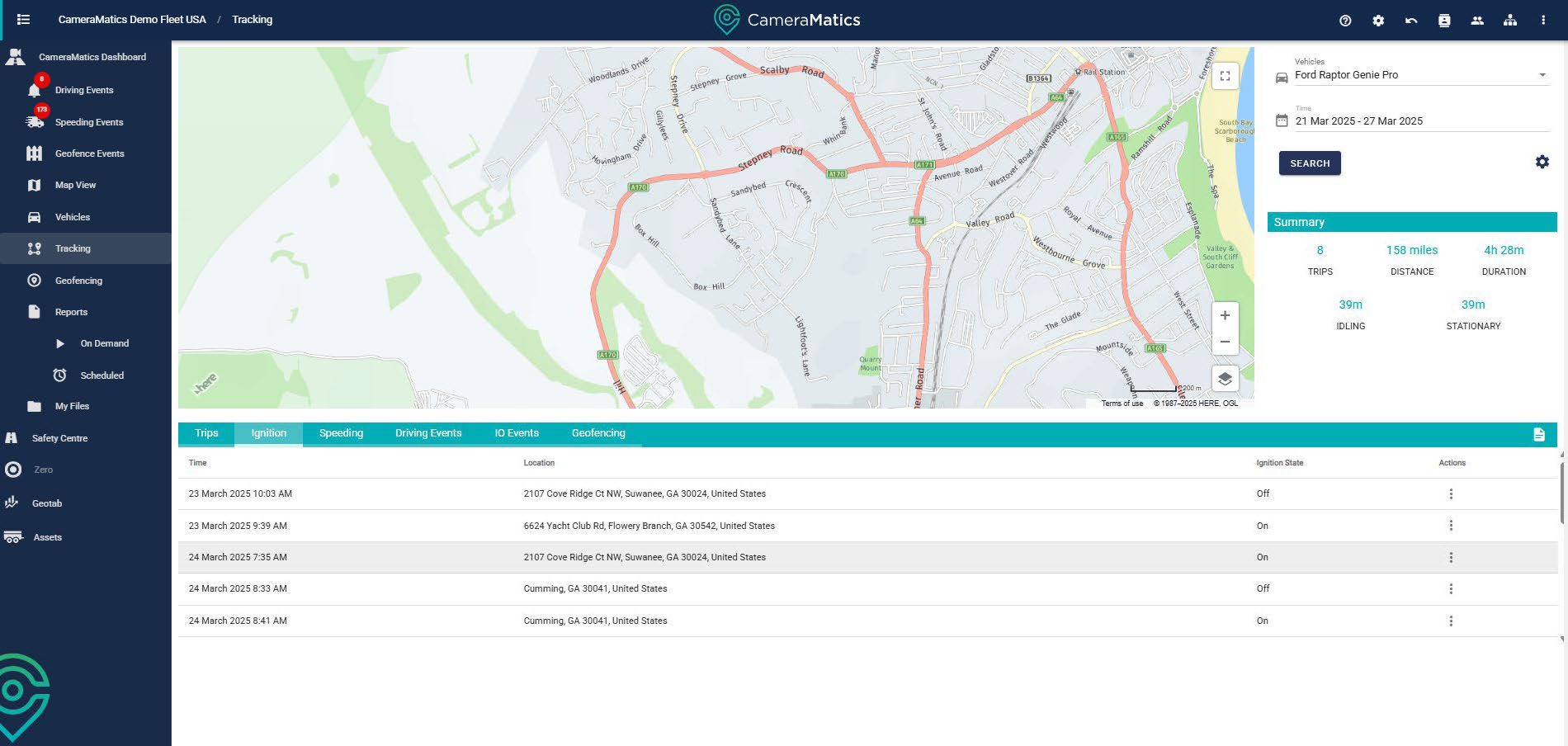
You will see the dates and times when the ignition was switched off and on, plus the location for each location event.
Speeding
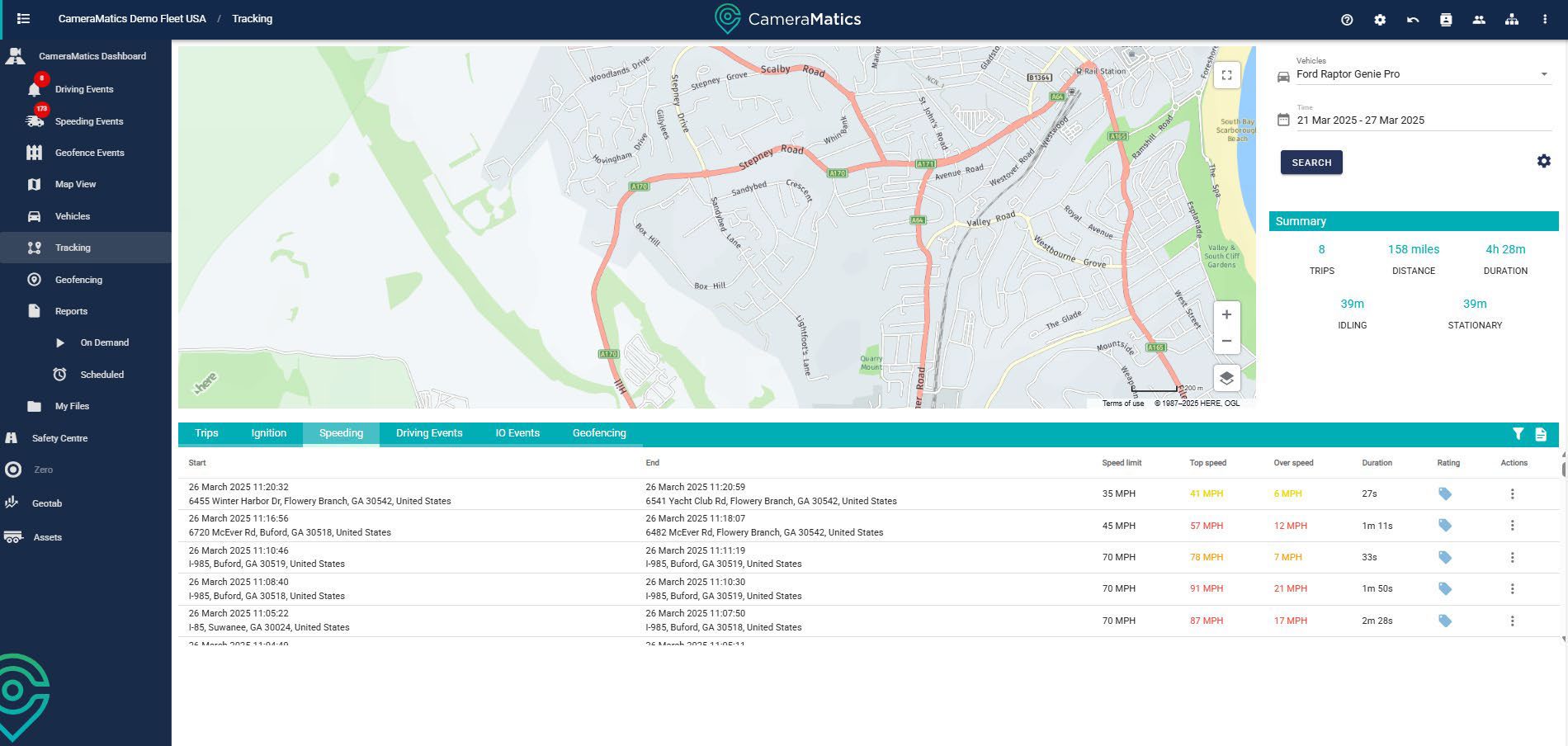
This shows all speeding events within the relevant timeframe, with details relating to the severity of the speeding events by the use of the speeding bands.
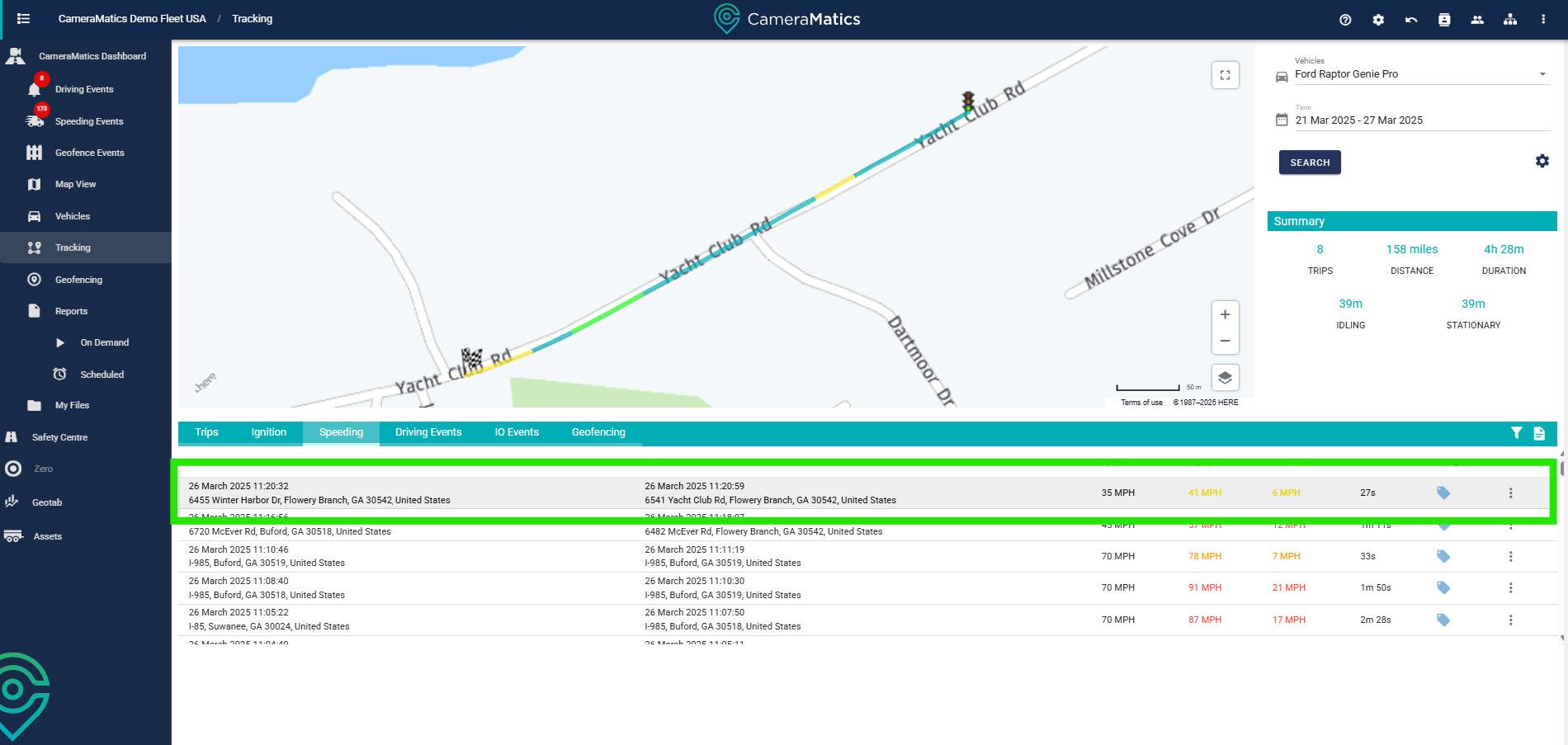
Click on any speeding event to see where on the map this event took place.
Driving Events
Similar to the speeding events, driving events lists all incidents relating to harsh cornering and harsh braking during the relevant timeframe. Click on an event to see where this has taken place on the map.

IO events
IO events are those initiated by the driver for whatever reason. The driver presses a button, and a 30-second clip is recorded and uploaded alongside relevant telematics data. As before, all such events within the relevant timeframe can be displayed on the map.
Geofencing
This will show all geofence events that the vehicle has triggered with during the trips it has completed. As before, if you click on one of the lines, you will see where on the map this has taken place.