From time to time, you may need to download footage from the platform. This may be for insurance purposes or to provide it to the police, for example.
Find & Store Footage
First, you will need to find the specific event you would like to retrieve footage from. Click on Driving Events from the left-hand menu.
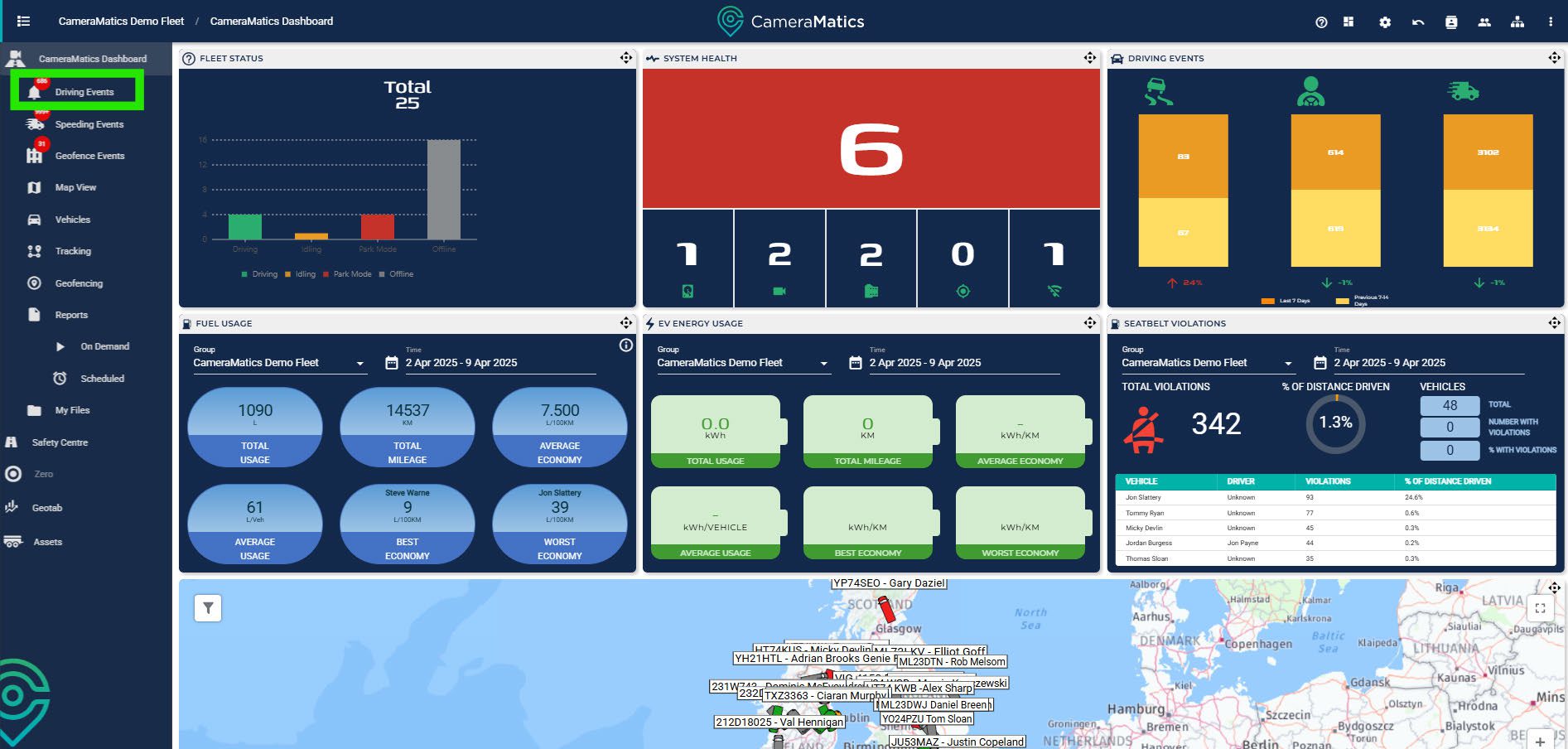
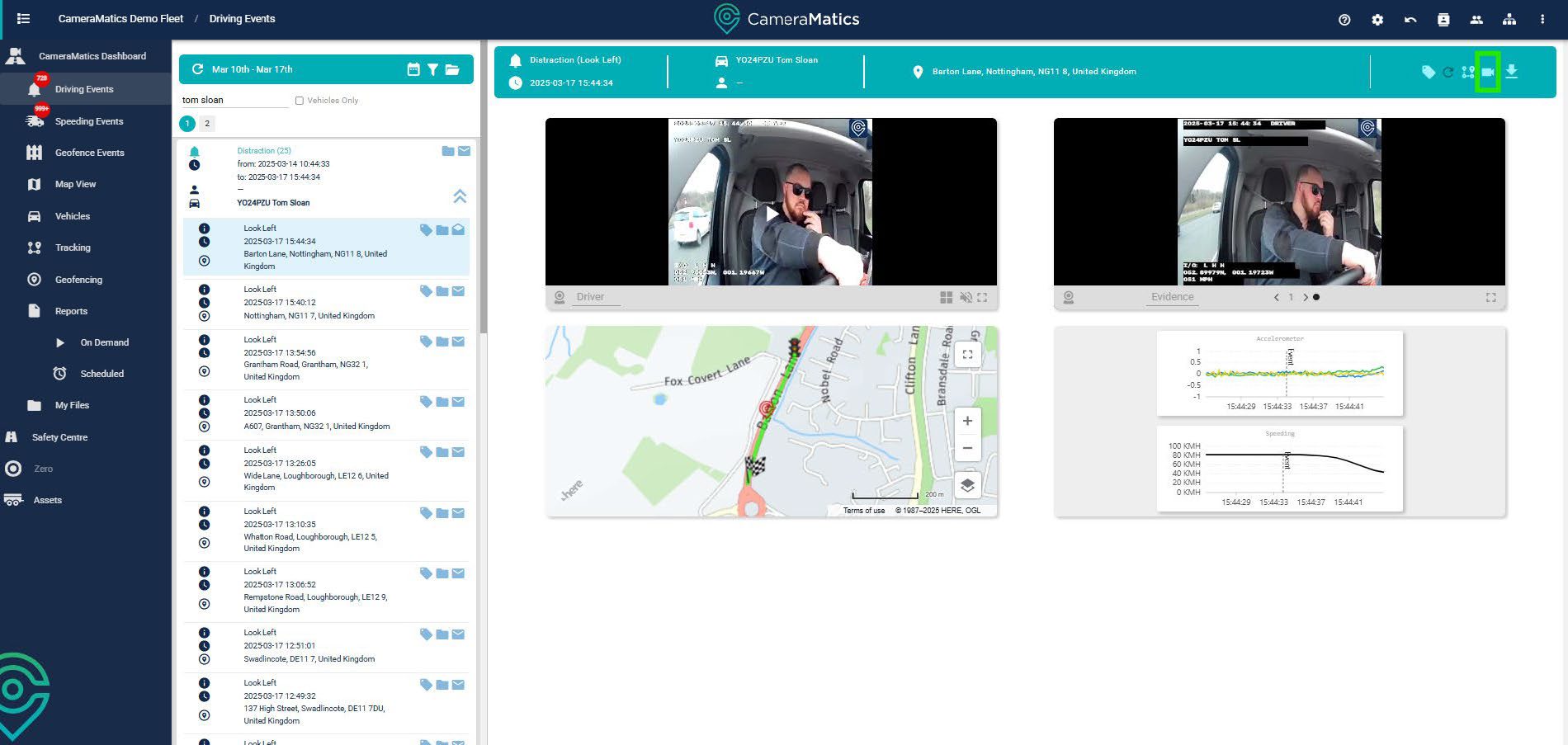
Select any event you are interested in from the left.

Now that you have selected the event you want to retrieve footage from, you can do one of two things:
- • Submit the footage to the cloud to store
- • Locally download the footage
To upload footage to the cloud for storage, click to submit the footage, which will be sent to the cloud and stored indefinitely on your account.
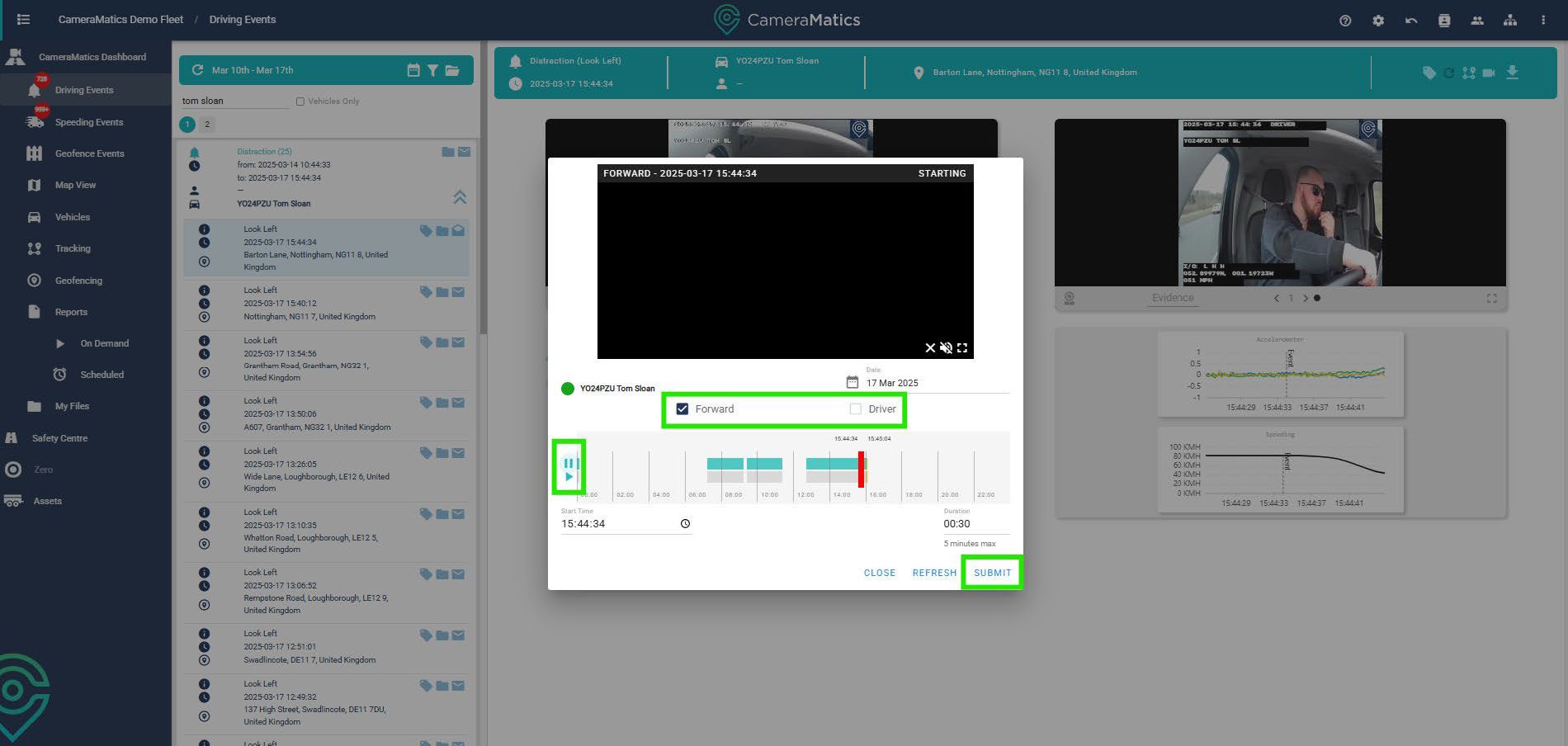
Once you have clicked the camera icon, you will get a pop-up summary of the event you are looking at. You can select the footage to store by checking the relevant cameras, and also preview the footage by clicking on play to
the left. There is no need to identify the date and time, as it will take you directly to the time the event happened.
Once you are satisfied, click submit to send the footage to the cloud to keep indefinitely.
To locally download footage to your device, click the downward pointing arrow in the top right of the screen.
Footage and My Files
Once you have submitted footage to the cloud, you can then access it through the My Files found in the left-hand side menu.

You will then see a list of all footage that you have submitted to the cloud for storage.
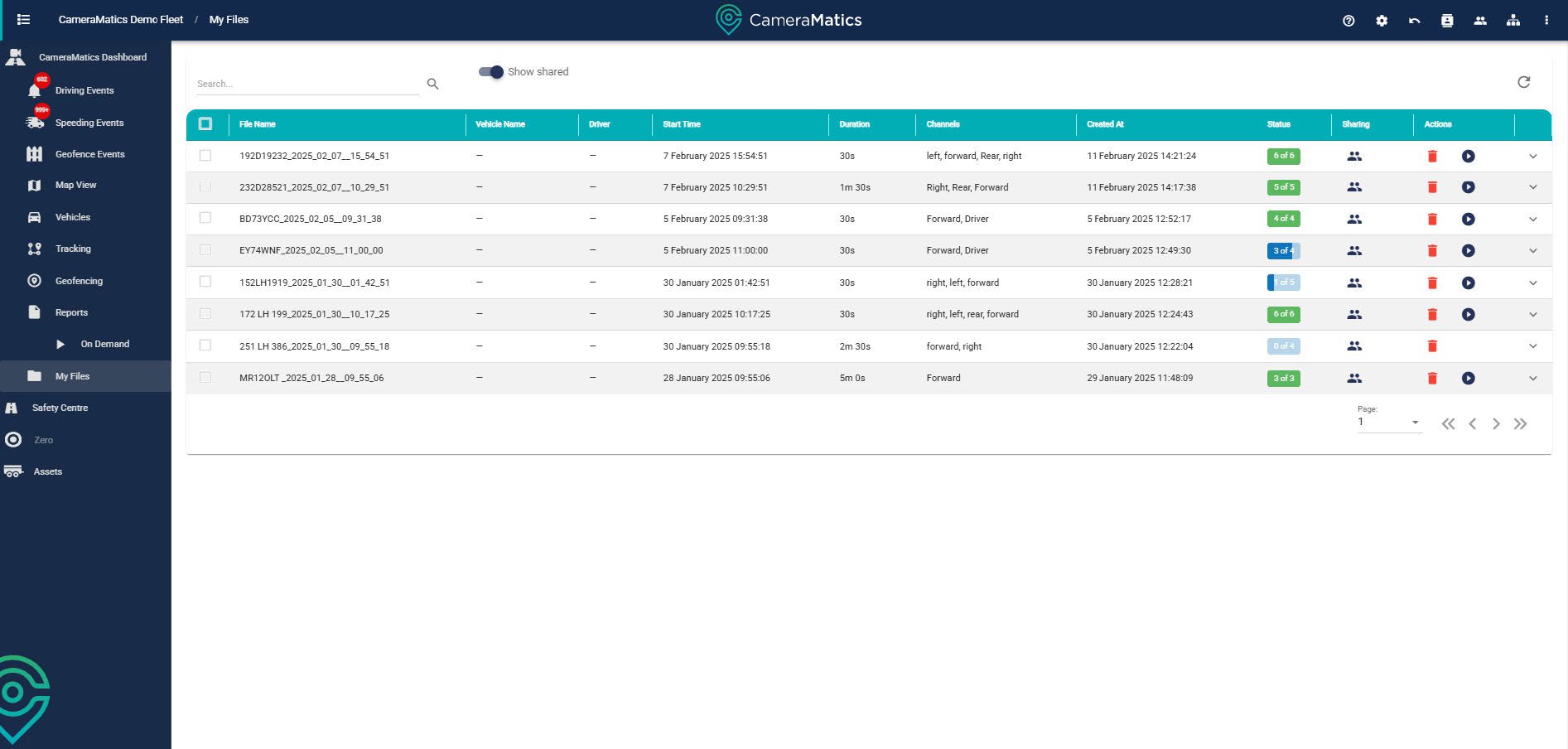
You can also share this footage with anyone that is within your contacts list. They can be internal or external contacts.


