During your driver’s shifts, they will come to complete regular checks on your vehicles either before, during or after the trips they have driven. These checks, of course, are important for the health of your fleet to capture anything that needs to be known.
Create Driver Checks
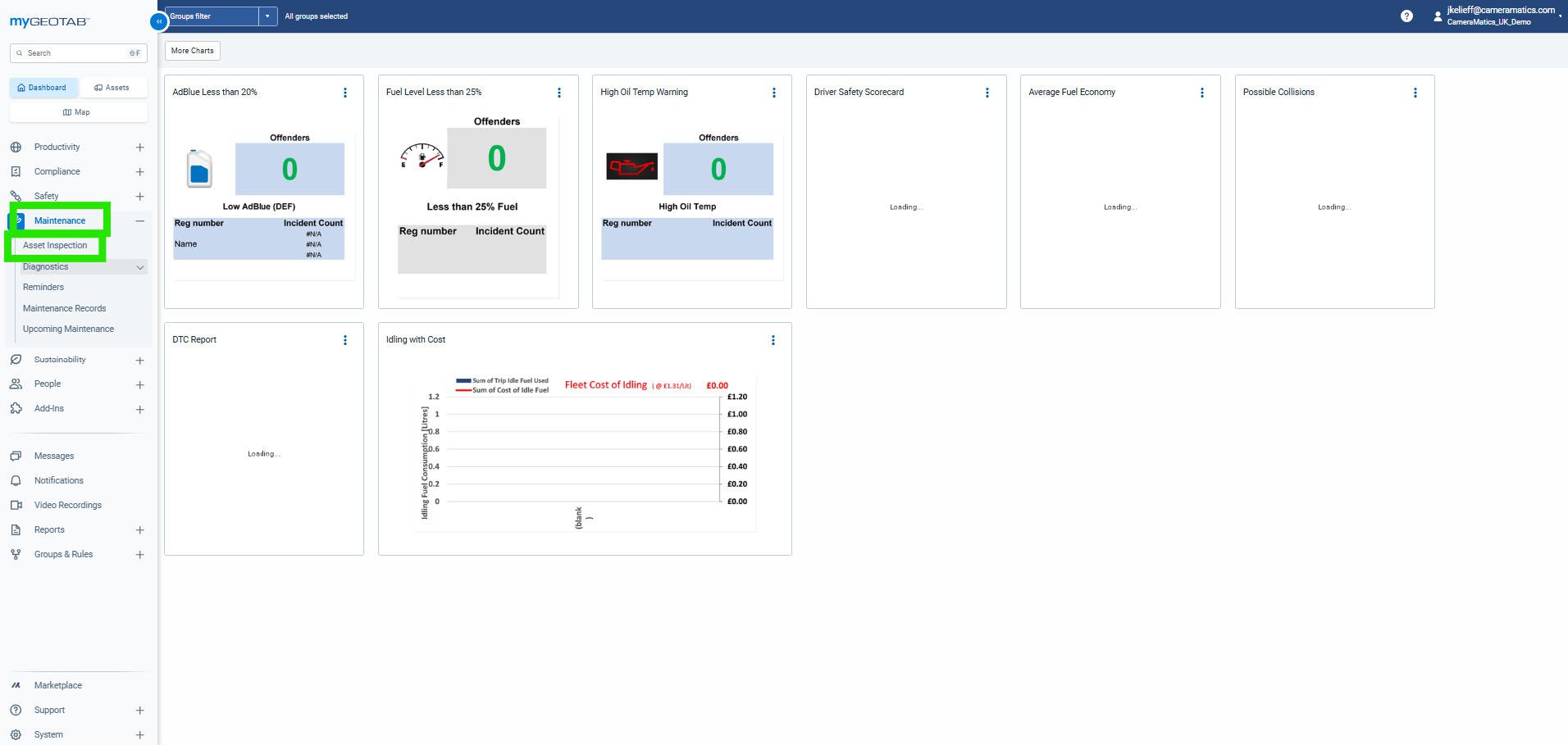
To create these checklists, you will first click into Maintenance and then Asset Inspection.
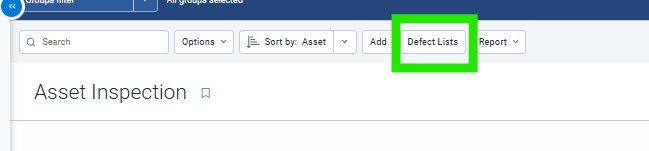
You will then be brought o any inspections that the drivers have completed and you will be able to see the outcome. To edit and add new inspections, click Defect Lists at the top.
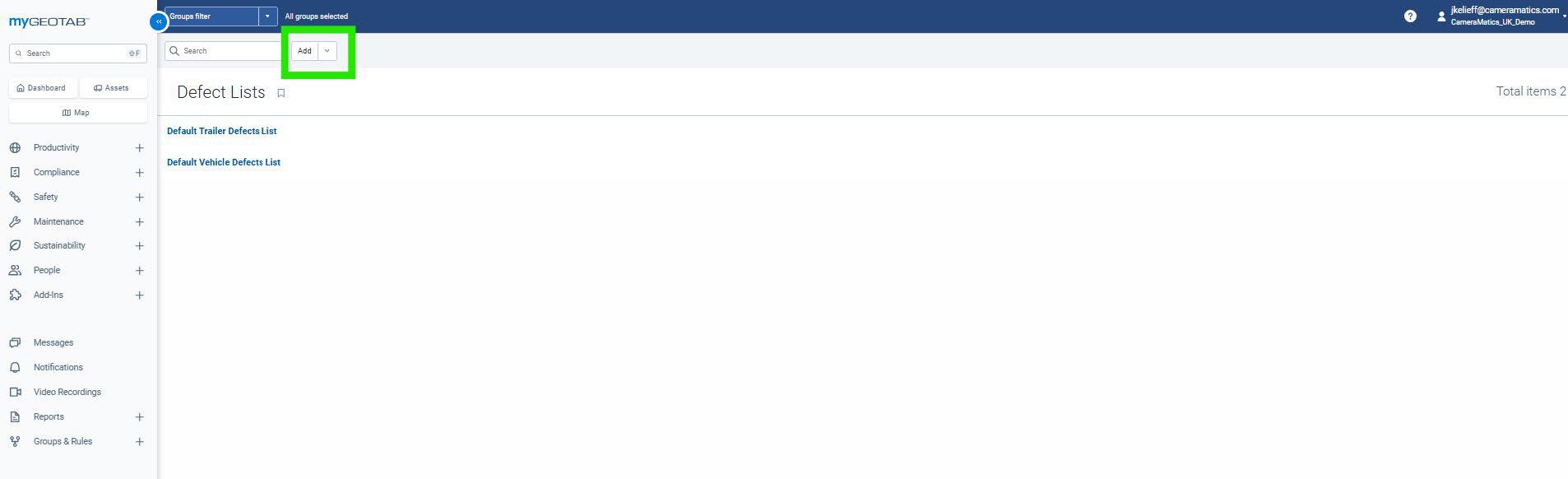
Here is all the lists that the drivers may need to complete during their shifts. You will have at least two default lists as an example that you can edit to your needs. To create a new list from scratch, click Add at the top.
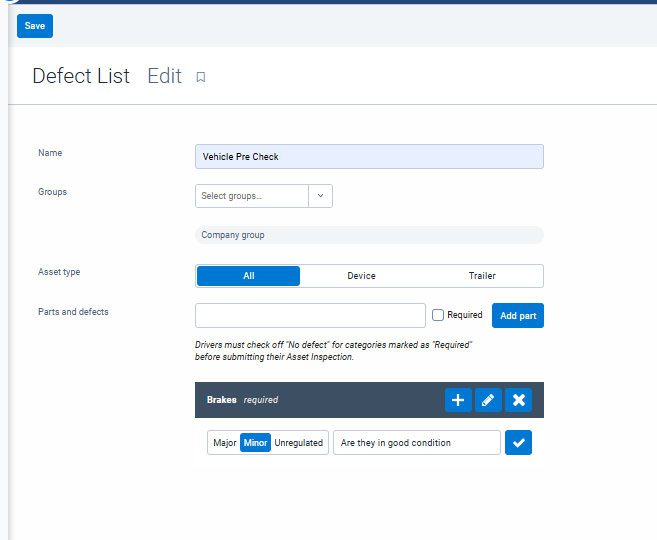
Now you will need to give the check a name, select which group it will be a part of, you can leave it as Company Group so everyone can access it. You will then need to select if this will affect all kinds of vehicles or if it is a trailer specific check.
Once you have completed those details you can then add each individual category surrounding the checks. You will then specific within each category what is to be inspected to ensure it has passed. You will notice a checkbox, if you have this ticked then the driver has to acknowledge it even if there is no defect found for that particular part.
Once complete click Save at the top.
Create Maintenance Reminders
You can also create a reminder for a specific check or maintenance issue that needs to be addressed on one or more vehicles.
To begin doing this you will click Maintenance and then Reminders.
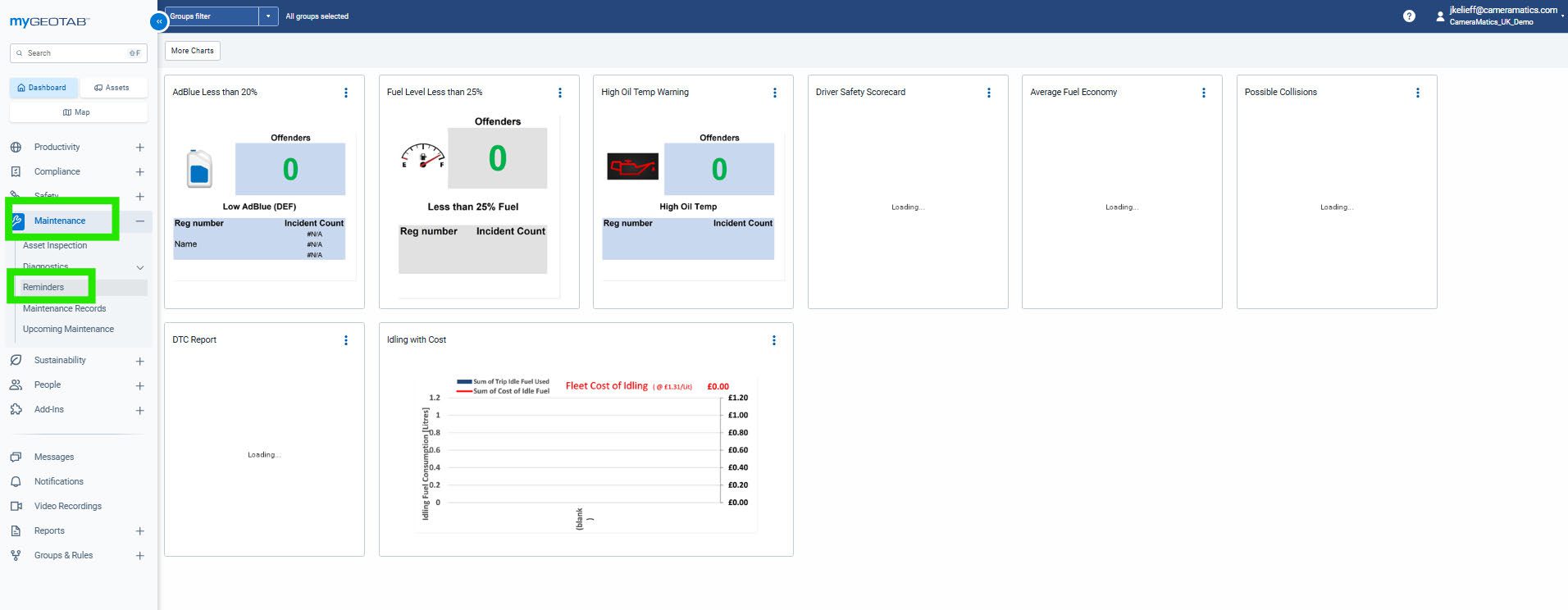
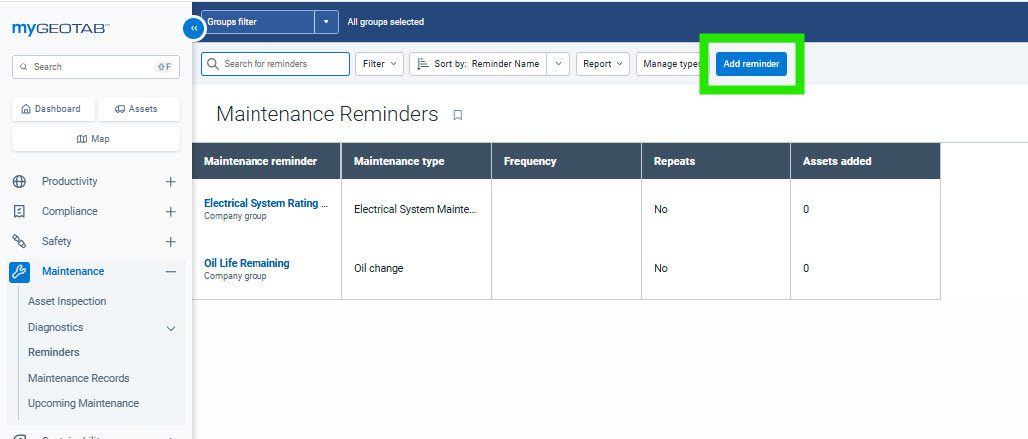
You will then see any reminders that have been added that you can edit. If there is none you will see two default ones that you can continue to use. To make one from scratch, you will click Add Reminder at the top.
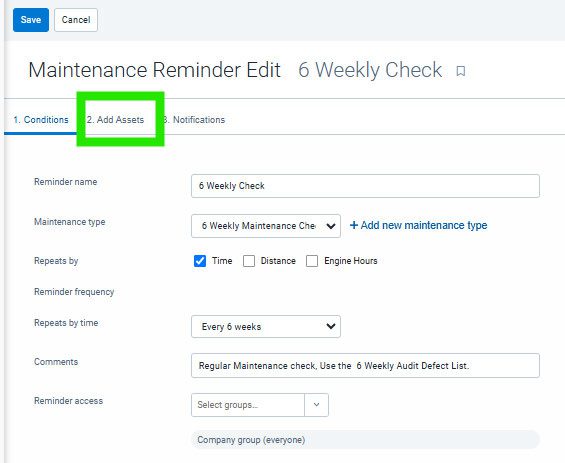
Now you will need to fill out all of the details for this kind of reminder. You will need to select the maintenance type or create a new one. How often it is repeated by time, distance or engine hours. Set a reminder date, add any comments and select the groups it will affect.
Once you have filled everything out, click on Add Assets.
Now you will need to select which vehicles this will be done for and then click Notifications.
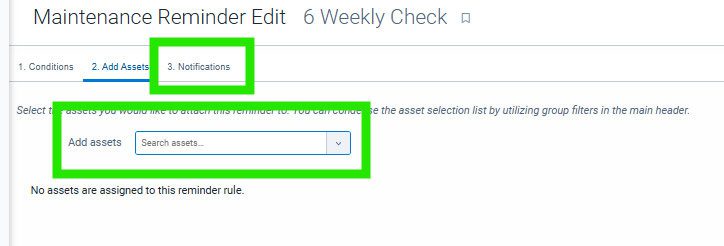
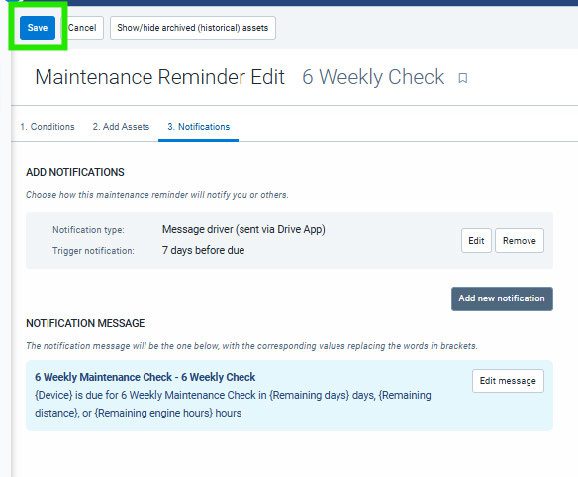
Now you will organize the different kinds of notifications for this reminder.
You can:
- Email a specific user
- Email a specific group of users
- Message the driver of the vehicle through the Driver App
- Have a pop up appear in yellow
- Have an urgent pop up appear in red
- Or have this appear as log only in the notifications section on GeoTab
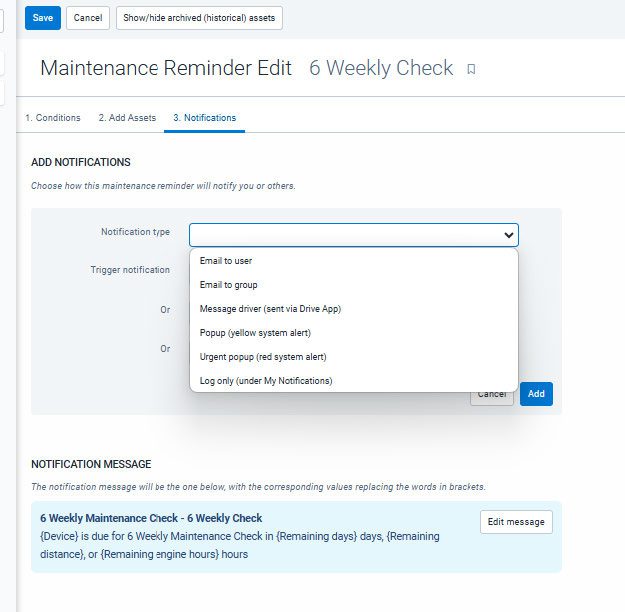
You will then specific the trigger for when this notification goes out. This can be done by a set:
- Days before the due date
- Amount of miles before due
- Amount of Engine hours before due
Once you are satisfied, click Add. You will then see that you can add a further notification. This function will allow you to send multiple notifications in a countdown fashion and to multiple users/drivers.
Once you have completed the notification, you can then edit the message to automate this for you to the necessary parties.
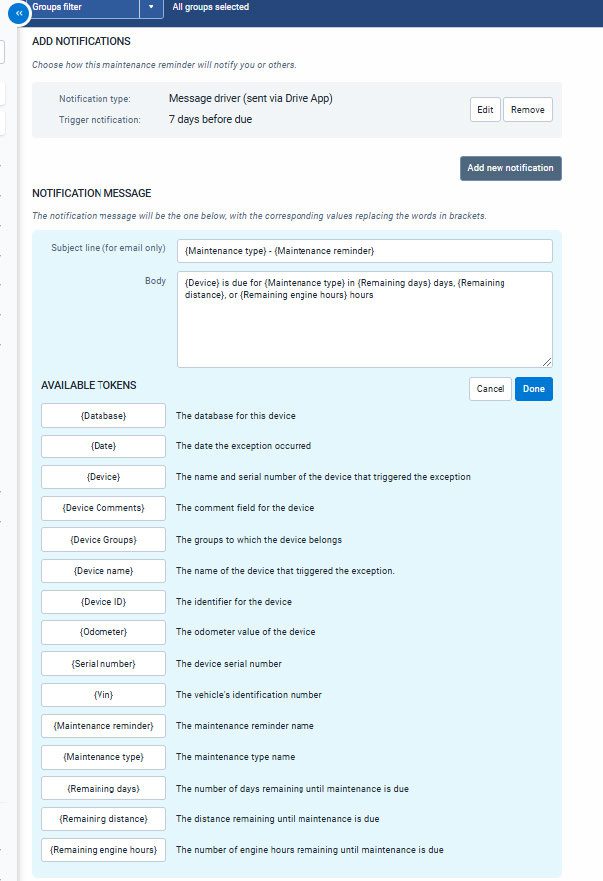
Once you have completed all necessary steps, click Save at the top.