You will also want to share access to your colleagues to help look after your fleet and driver profiles to assign them to the vehicles and also have your data reflect into the drivers.
If you create a profile on GeoTab, they will only have access to this system and not the CameraMatics Platform.
Create User Profiles
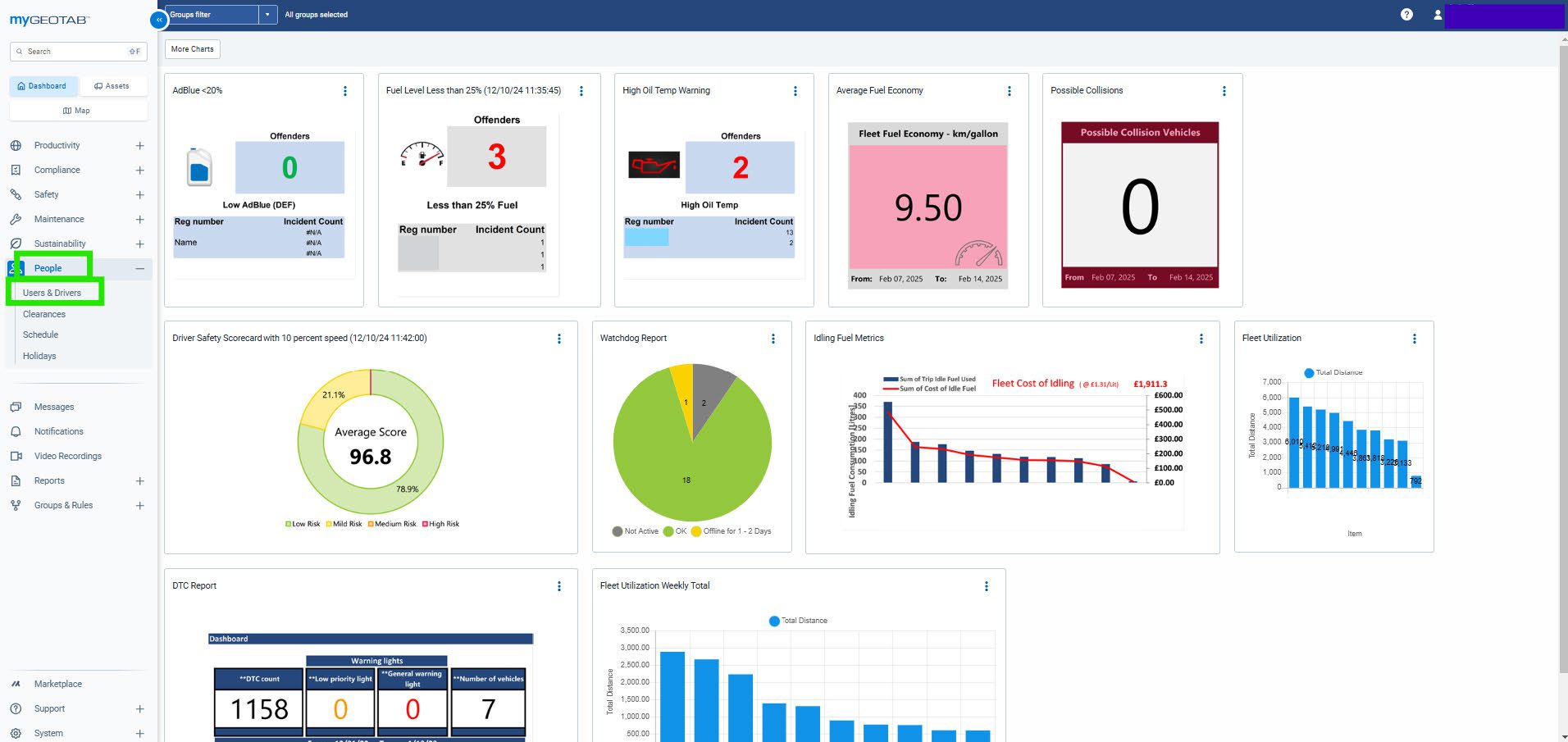
To create the user profiles you can click on People and then Users & Drivers.
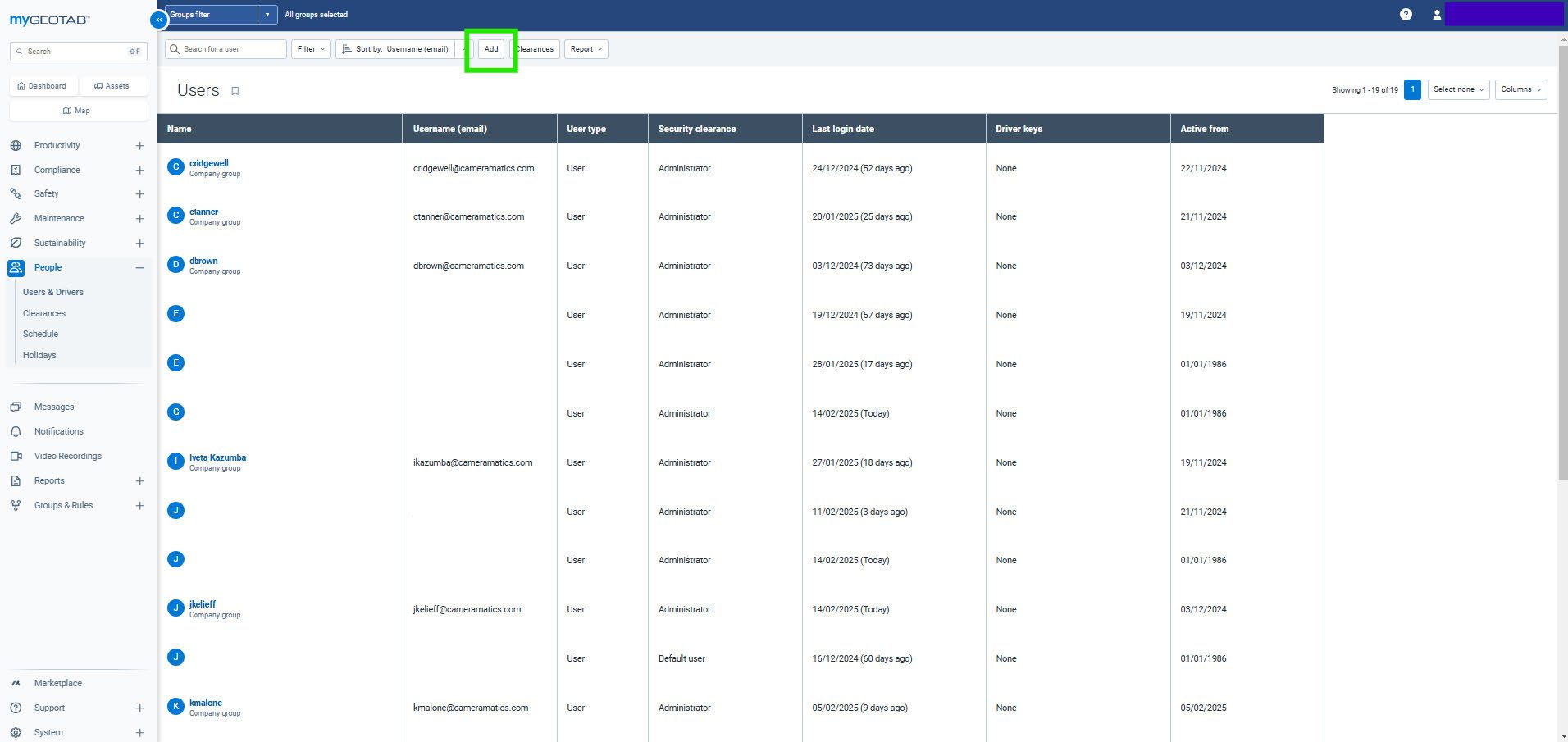
Here you will have the full list of Users and Drivers that have been created. From here you can click Add at the top to create a new User.
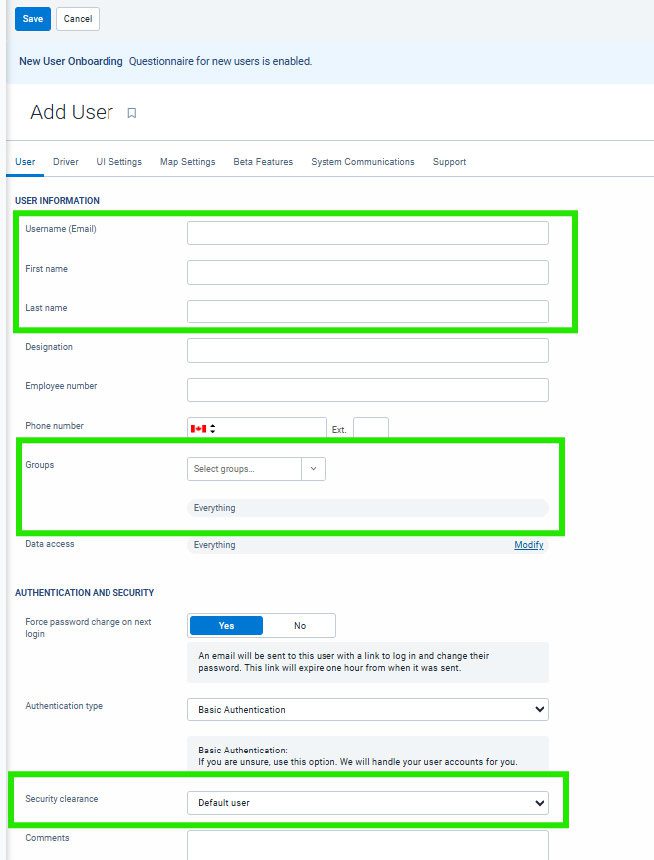
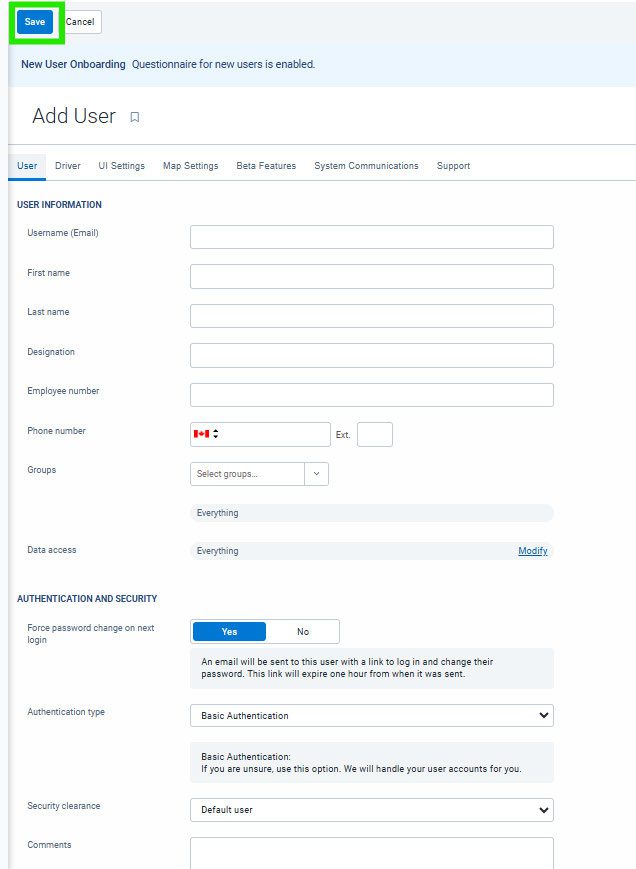
Next you will fill out their details ensuring the Username, First name and Last name have been filled out. You must also provide what level of security clearance this user will require. You can also then decide which group they will belong to, this will ensure they see what ever vehicles that are in this group.
Once you have completed everything you need to and are satisfied simply click Save at the top and you have created the profile.
Create Driver Profiles
If you create driver profiles they can be assigned to your fleet and gain access to a mobile app that will allow them to conduct checks on your fleet and exchange messages to your users.
NOTE: If you use Tacho then creating driver profiles is not required.
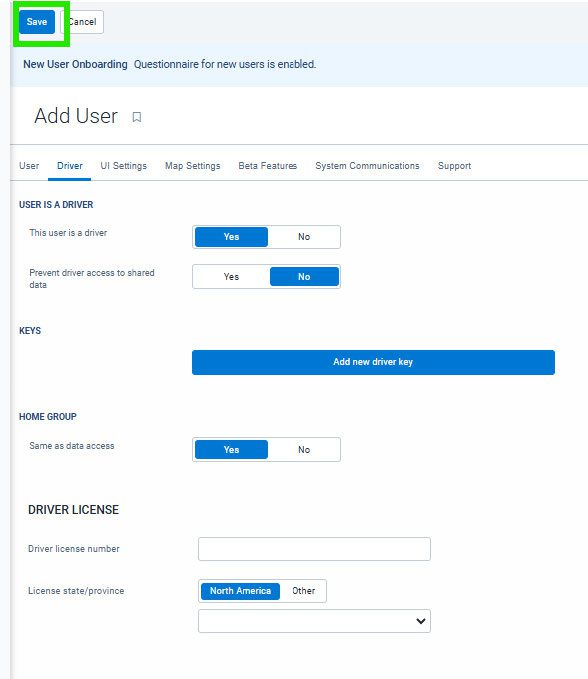
Within the User profile that you have learned above, you will select the Driver tab at the top.
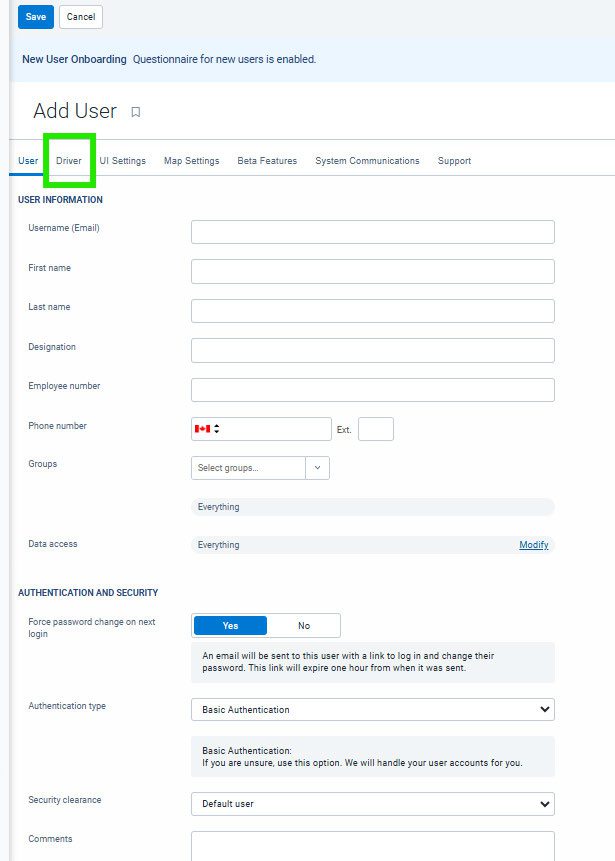
Toggle yes when you click on this tab and this is the bare minimum required for a driver profile.
You can however, add a driver key so they can sign into the vehicles and they will automatically assign them to the vehicles on the system.

Once you have completed everything you need to and are satisfied simply click Save at the top and you have created the profile.